

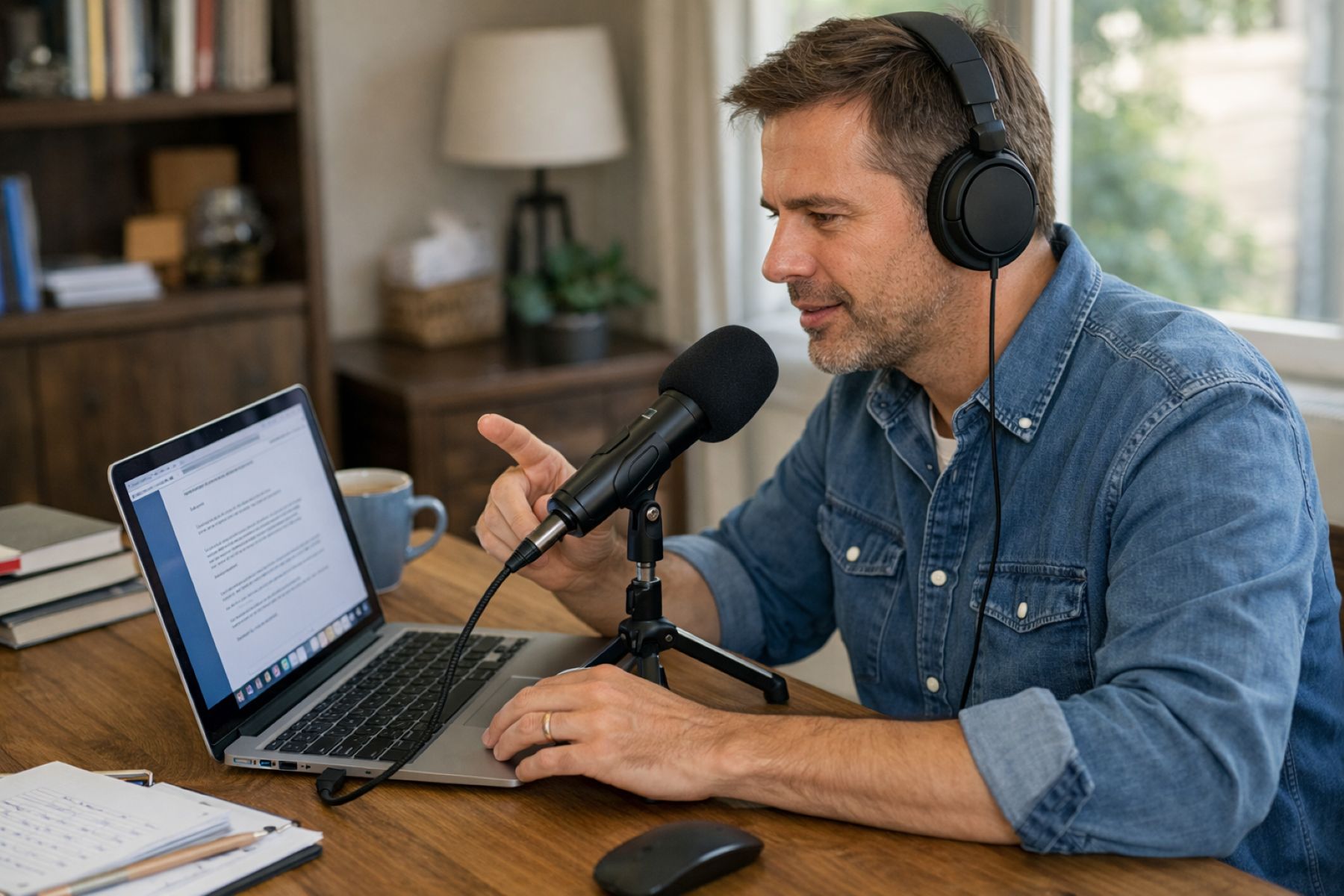
For many professional writers, the keyboard is both a bridge to creativity and a source of physical strain. After thousands of words, the hands begin to ache, and the mental friction of typing can sometimes slow the rapid-fire pace of a wandering imagination. This is where Mac dictation productivity transforms from a mere accessibility feature into a high-performance tool for modern creators. By shifting the burden from your fingers to your voice, you can maintain a fluid creative flow while significantly increasing your daily word count.
Defining Mac Dictation Productivity
Before we explore the technical nuances, it is helpful to understand what we mean by Mac dictation productivity. At its core, this refers to the strategic use of Apple’s built-in Speech-to-Text technology to draft, edit, and navigate documents using vocal commands. Unlike basic voice typing, a productive dictation workflow involves optimizing system settings and mastering specific syntax to ensure that the transition from thought to digital text is as seamless and accurate as possible.
1. Enable Advanced Dictation Settings
The first step toward mastering your workflow is ensuring your hardware is prepared for the task. Within the System Settings of your macOS, you will find the Keyboard section, which houses the Dictation toggle. Enabling this is just the beginning; you should also ensure that “Enhanced Dictation” or the latest language models are downloaded for offline use.
This reduces latency and ensures that your Mac dictation productivity doesn’t drop if your internet connection becomes unstable. Choosing a dedicated shortcut key—like double-tapping the Function (Fn) key—makes the feature feel like a natural extension of your writing process rather than a hidden utility.
2. Use Precise Voice Punctuation Commands
One of the biggest hurdles for beginners is the “wall of text” effect, where sentences run together without structure. To write like a professional, you must learn to speak your punctuation. Saying “comma,” “period,” or “new paragraph” aloud might feel a bit unusual at first, but it quickly becomes second nature. By dictating the structure as you go, you save yourself hours of manual formatting later. This practice allows your draft to look like a finished manuscript from the moment the words hit the screen, keeping your momentum high.
3. Dictate Specific Formatting Styles
Your Mac is capable of more than just capturing plain text; it can also handle basic stylistic cues that add professional polish to your work. Commands such as “all caps on” or “numeral” allow you to emphasize points or manage data without ever reaching for the mouse. When you integrate these formatting commands into your speech, you maintain a “deep work” state. This level of control is a hallmark of high-level Mac dictation productivity, as it minimizes the need to break your concentration to fix minor visual details.
4. Create Custom Voice Text Shortcuts
Every writer has certain phrases, signatures, or complex terms they use repeatedly. Instead of struggling to pronounce difficult names or technical jargon every time, you can utilize the “Text Replacements” feature within macOS. By setting up custom shortcuts, you can dictate a simple trigger word, and the system will automatically expand it into the full, correctly spelled phrase. This is a game-changer for technical writers or novelists with character names that are difficult for standard AI models to recognize on the first try.
5. Optimize External Microphone Audio Quality
While the built-in microphones on modern MacBooks are impressive, they can sometimes struggle with background noise or echo. For the highest level of accuracy, investing in a dedicated USB or XLR microphone can make a world of difference. Clearer audio input means fewer “hallucinations” from the dictation engine, which directly impacts your Mac dictation productivity. When the system hears your voice with crystal clarity, you spend less time correcting errors and more time exploring your next big idea.
6. Review Text for Accuracy Periodically
Even with the best equipment, no voice-to-text system is perfect. A professional strategy involves dictating in “sprints”—perhaps twenty minutes of continuous speech—followed by a quick five-minute review. This rhythmic approach allows you to catch homophone errors (like “there” versus “their”) while the context of your thoughts is still fresh in your mind. This periodic check ensures that your final output remains high-quality and reduces the daunting nature of a massive end-of-day editing session.
7. Master Quick Voice Editing Shortcuts
True efficiency comes when you can correct mistakes as quickly as you make them. Learning commands like “select previous word” or “delete that” allows you to fix stumbles in real-time. This creates a conversational loop between you and your Mac, where the screen becomes a mirror of your thoughts. As you become more proficient with these shortcuts, the distinction between “typing” and “thinking aloud” begins to vanish, allowing your productivity to reach heights you might have previously thought impossible.
Embracing Mac dictation productivity is more than just a technical upgrade; it is a shift toward a more ergonomic and intuitive creative life. By leaning into these seven strategies, you protect your physical health from the rigors of repetitive typing while tapping into the natural rhythm of your speaking voice. Writing doesn’t always have to be a silent, stationary task. Sometimes, the best way to find your voice as a writer is to quite literally start using it.