

In our rapidly evolving digital world, finding the right balance between technology and childhood experiences can feel like a moving target. As parents, we want our children to explore the vast educational and creative resources the internet offers, but we also want to ensure they remain safe and grounded.
A comprehensive Google Family Link setup provides a thoughtful bridge for this journey, offering a suite of tools designed to grow alongside your child. Whether you are guiding a curious 7-year-old or supporting a 15-year-old navigating their burgeoning independence, this guide will walk you through creating a digital environment that prioritizes safety without stifling curiosity.
Understanding the Role of Google Family Link Setup
Before diving into the technical steps, it is helpful to understand what the Google Family Link setup actually represents. At its core, it is a management tool that allows parents to connect their Google Account with their child’s. This connection enables you to set digital ground rules, view activity reports, and manage app access remotely from your own smartphone.
For younger children, it acts as a protective shield, filtering out content that isn’t quite right for their age. For teenagers, the tool shifts toward a more collaborative role, fostering transparency and helping them develop healthy habits. It is not about surveillance; it is about providing a safe framework for digital exploration.
1. Initialize Parent and Child Accounts
The journey begins with ensuring both you and your child have the necessary accounts. If your child is under 13, you will need to create a special Google Account for them through the Family Link interface. This ensures the account is flagged for supervision from the start.
If you are working with a teenager who already has an account, you can “invite” them to join your family group. This distinction is important because teenagers over 13 have more autonomy and must technically “consent” to the supervision, which is a great opportunity for a conversation about boundaries.
2. Install Family Link Mobile Application
Once the accounts are ready, the next step is to download the Family Link app. You will need the “Parent” version on your own device (available on Android and iOS). This app serves as your mission control center, where you can adjust settings on the fly. On your child’s device, you may need to install the “Family Link for Children & Teens” app to ensure seamless communication between devices.
3. Link Devices via Pairing Codes
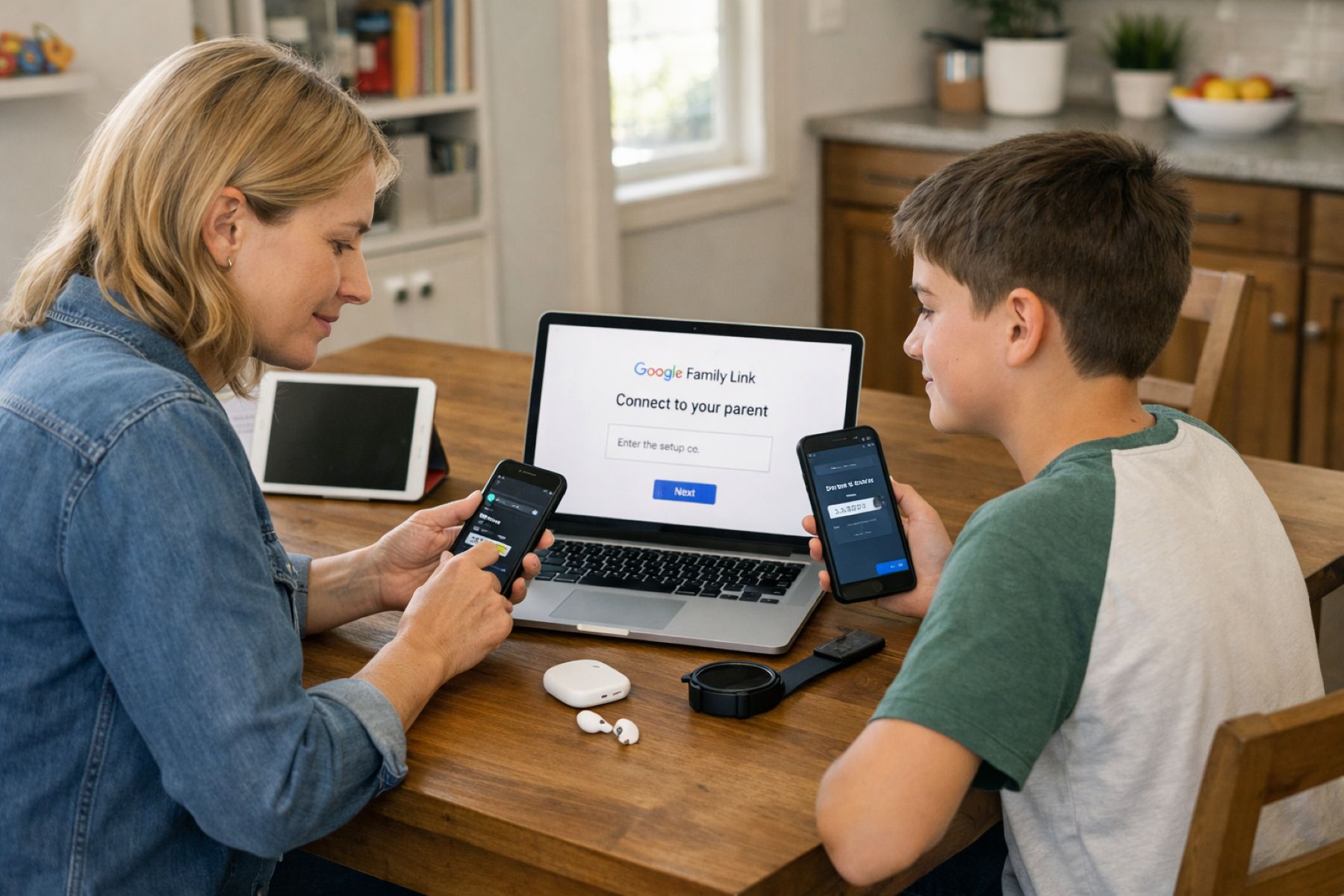
To create a secure link between devices, Google uses a simple pairing code system. After signing your child into their device with their Google Account, the system will recognize that the account requires supervision. You will then be prompted to enter a code generated by your parent app. This “handshake” confirms you are the authorized guardian and completes the initial Google Family Link setup technical requirements.
4. Establish Daily Screen Time Limits
One of the most valuable features of this configuration is the ability to define how much time your child spends on their device. Rather than constantly watching the clock, you can set a daily allowance—for example, two hours on weekdays and three on weekends. Once that limit is reached, the device locks automatically (allowing only emergency calls), removing the “nagging” factor from parenting.
5. Configure Automatic Device Bedtime Schedules
Sleep is essential for developing minds, and the “Bedtime” feature ensures devices don’t sneak into the bedroom late at night. You can set a recurring schedule that locks the phone at a specific time every evening. For a 10-year-old, this might mean a 7:30 PM lockout, while a 14-year-old might have until 9:00 PM.
6. Moderate Age-Appropriate App Store Downloads
Within your Google Family Link setup settings, you can choose to receive a notification every time your child tries to download a new app. You can review the app’s rating and description before hitting “Approve” or “Deny.” This is particularly useful for children aged 7 to 12 to prevent them from accidentally stumbling into social media or games with mature themes.
7. Filter Search Engine Content Results
By enabling SafeSearch through Family Link, you can filter out most explicit results from Google Search. While no filter is perfect, this significantly reduces the chances of encounter inappropriate imagery. You can also manage Chrome specifically, choosing between blocking mature sites or creating a “whitelist” of pre-approved websites.
8. Monitor Real-Time Physical Device Location
Peace of mind often comes from knowing where your child is. If your child’s device is on and connected to the internet, you can see its location on a map within your app. You can even set up “Place Alerts” to get a notification when they arrive at school or leave a specific area.
9. Review Weekly Application Usage Reports
Family Link provides weekly activity reports that show exactly which apps your child is using and for how long. These reports are wonderful conversation starters. If you notice a 12-year-old spent five hours on a single mobile game, you can discuss whether that felt like a productive use of their time.
10. Customize Restrictions for Younger Children
For children on the younger end of the 7 to 15 spectrum, more robust restrictions are usually appropriate. You might choose to block YouTube entirely and only allow YouTube Kids. At this age, the goal of the Google Family Link setup is to create a “walled garden”—a safe space where they can play and learn without the risks of the wider internet.
11. Grant Autonomy for Older Teenagers
As your child nears 14 or 15, the dynamic should naturally shift. This is the time to start relaxing certain restrictions to build trust. You might move away from approving every app download and instead rely on the weekly reports. Giving teenagers autonomy allows them to make their own mistakes in a supervised environment.
12. Manage YouTube Content Access Levels
Family Link allows you to set “Content Levels” for YouTube: “Explore” (9+), “Explore More” (13+), or “Most of YouTube.” These settings filter out videos with mature themes while still allowing your child to enjoy creators they love. This nuanced approach acknowledges that a 14-year-old has different maturity levels than an 8-year-old.
13. Lockdown Devices for Study Periods
The Google Family Link setup includes a “Lock Now” button for instant device lockout regardless of the daily limit. This is a helpful tool for creating “deep work” periods during homework time, removing the temptation of notifications and promoting better concentration.
14. Approve In-App Purchase Request Notifications
To avoid “bill shock” from accidental purchases, you can require approval for any Google Play billing system transactions. Whether it’s a game skin or a subscription, your child must send a request to your phone. This serves as a great teaching moment regarding the value of money in a digital economy.
15. Update Permissions as Children Mature
The most important part of managing your Google Family Link setup is that it is not static. Every few months, sit down with your child and review the settings. As they grow more responsible, you can gradually increase limits or remove certain filters.
Setting up parental controls can feel like a daunting task, but it is ultimately an act of care. The Google Family Link setup is a flexible, powerful way to protect your children while empowering them to learn. By taking the time to configure these settings thoughtfully, you are providing your children with the guardrails they need to explore the digital world safely and confidently.